Guides
User Instructions and Guides
Explore our detailed guides that will help you use all the features of our platform
Moving objects
There are multiple ways to move objects in the editor. Use your mouse to click and drag, or use keyboard arrow keys for precise adjustments. Hold Shift while moving to keep movement aligned horizontally or vertically. You can also move multiple selected objects at once
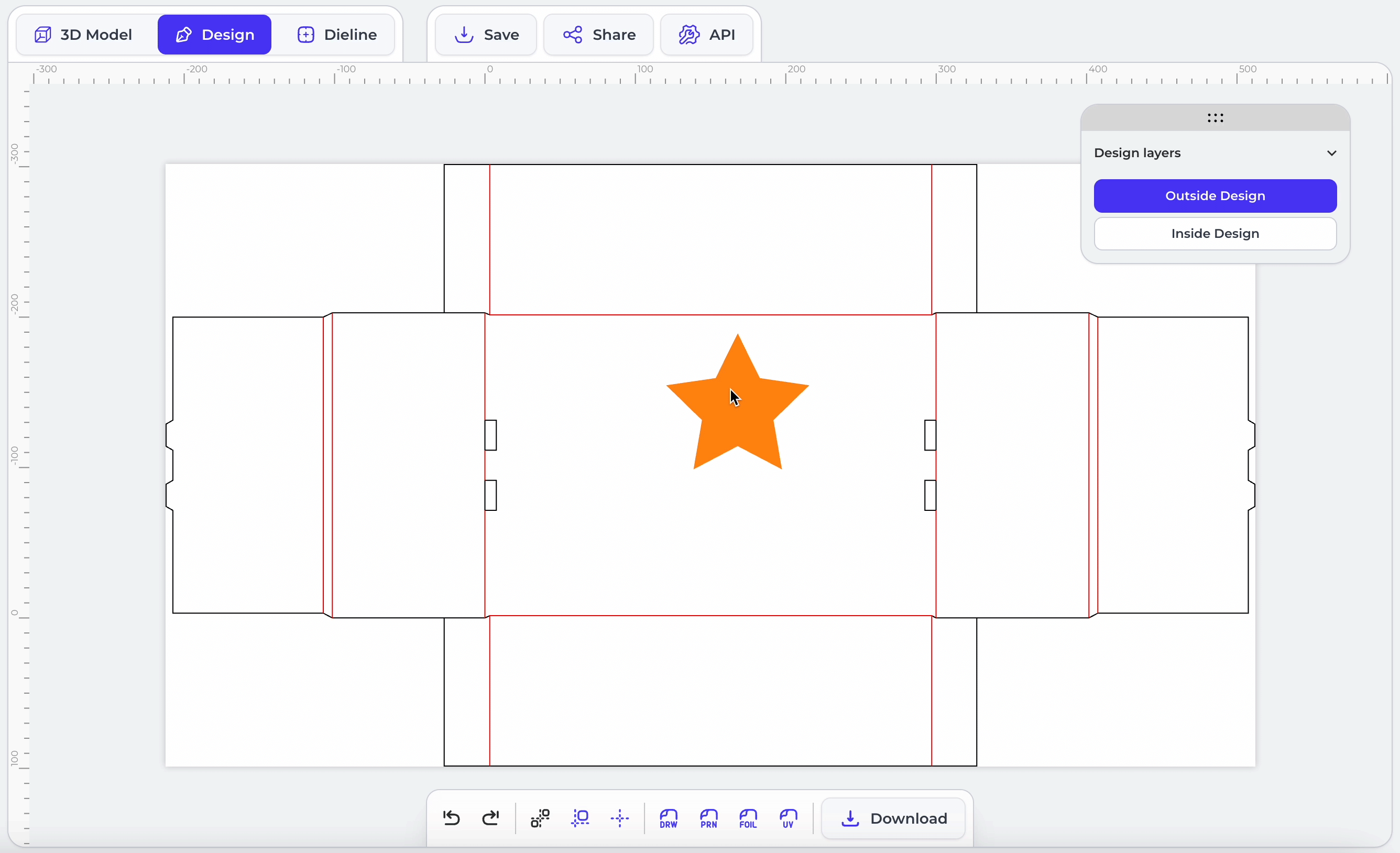
Click and drag to move objects freely
To reposition any object on the canvas, simply click on it, hold down the mouse button, and drag it to your desired location. This allows you to freely arrange all elements exactly where you want them
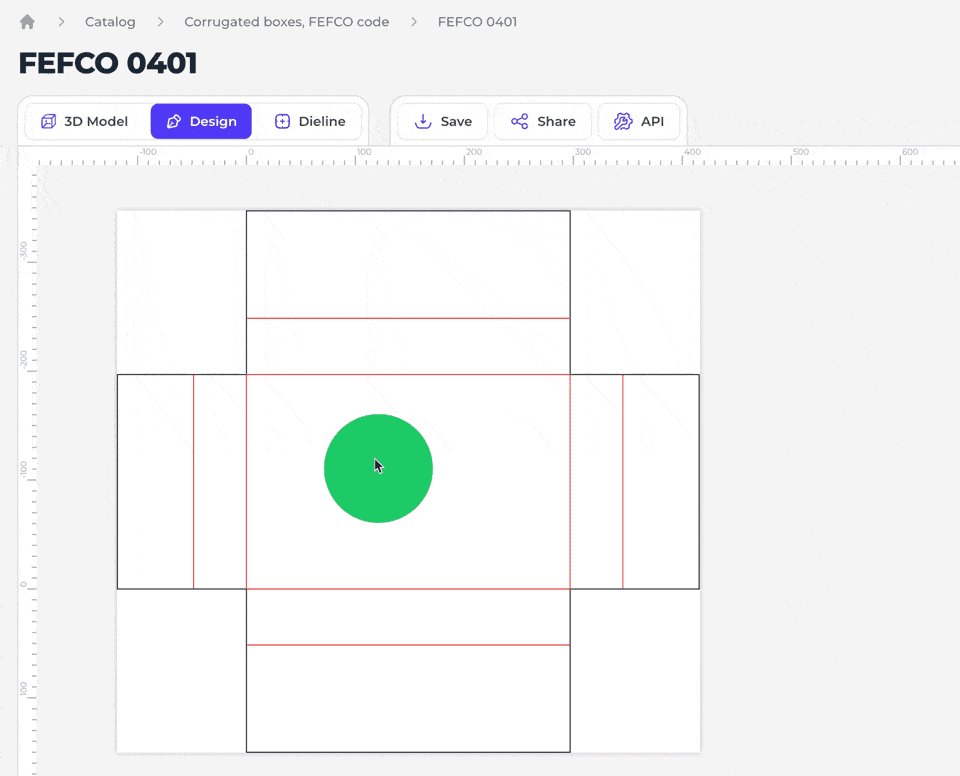
Shift-drag for straight movement
When dragging an object with your mouse, hold the Shift key to restrict movement to a straight line—either horizontally or vertically—making precise alignment easier
Popular corrugated boxes
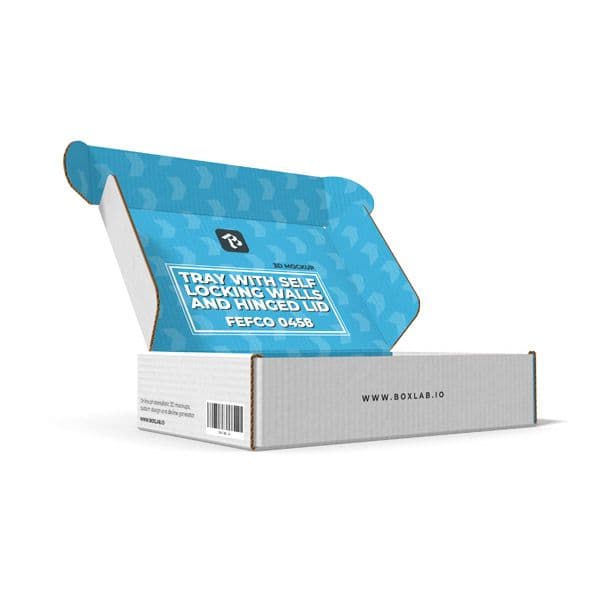
Tray with Hinged Lid, FEFCO 0427
Corrugated boxes, FEFCO code
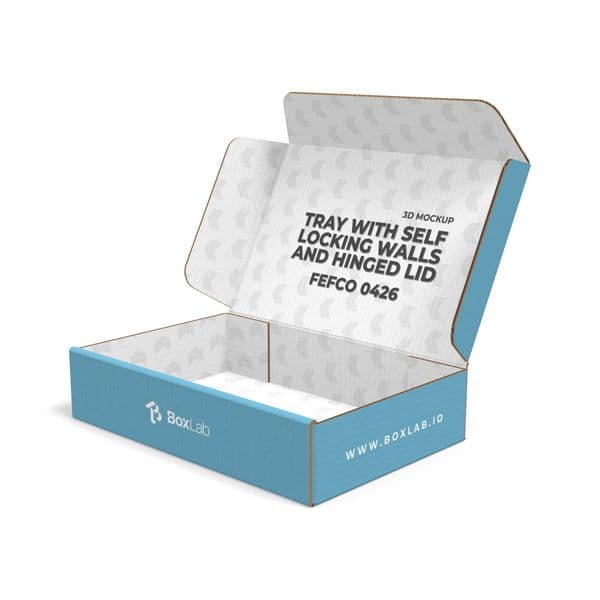
Tray with Self Locking Walls and Hinged Lid, FEFCO 0426
Corrugated boxes, FEFCO code
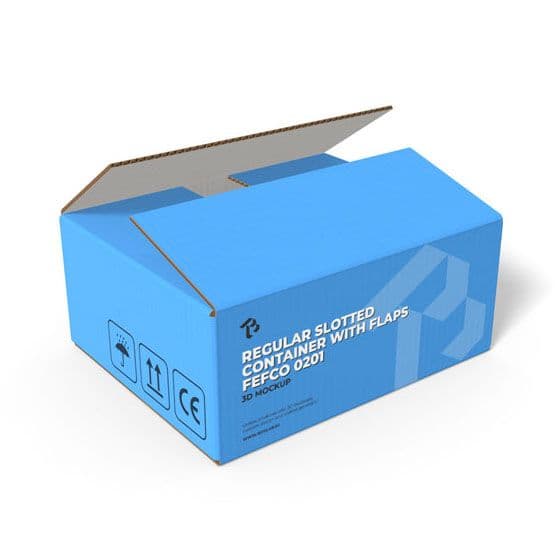
Regular Slotted Container, FEFCO 0201
Corrugated boxes, FEFCO code

Tray with Self Locking Walls, FEFCO 0423
Corrugated boxes, FEFCO code